By the MITS team, developers of Bulk Product Edit (Built for Shopify) · Updated 5 November 2026
A variant is one combination of option values: a small blue T-shirt is one variant of a T-shirt that comes in sizes and colors. A Shopify product can have up to three options and up to 2,048 variants (Shopify Help Center). Bulk editing variants in Shopify means changing a field such as price, compare-at price, stock or weight on many of those combinations at once, often on one size or one color across the whole catalog.
Short answer: inside one product, select the variants in its Variants section and click Bulk edit. Across many products, tick them in the Products list and click Bulk edit, then edit the variant rows. To change only one size or color across the catalog by a rule (plus $2, minus 30%), filter the option value columns of a CSV export, or use an app that filters variants by option value.
Which method fits the edit
| The edit | Shopify admin or CSV | Bulk Product Edit |
|---|---|---|
| A few variants of one product | Product page → Variants → select → Bulk edit | Works, but the product page is quicker |
| One size or color across 200 products | Find the matching rows in the bulk editor, or filter the option value columns of a CSV | Variant filter “Option1: value is equal to XXL” |
| Plus an amount or a percent, rounded to .99 | Type each value, or a spreadsheet formula in the CSV | One price rule |
| A sale on one color that ends on a date | Edit twice by hand | Start and revert time (paid plans) |
| Undo | Re-import the CSV you saved before | Revert the task from its history |
Inside one product: the Variants section
Shopify lets you narrow a product’s variant list by option value and edit the selection together. The steps follow Shopify’s help on searching and filtering variants.
- In the Shopify admin open Products and click the product.
- In the Variants section, open the search and filter, then pick an option value, for example Size → Small. With two filters only the variants that match both stay in the list.
- Tick the variants, or the top checkbox for all of them, and click Bulk edit.
- Change the values and click Save.
A redesigned product page is rolling out to some stores, where variants open in a details view or a table view; the idea is the same.
Across many products: Shopify’s bulk editor
- Open Products, tick the products and click Bulk edit.
- Every row of the table is a selected product or variant. Click Columns and add the fields you need: price, compare-at price, SKU, weight.
- Find the rows of the size or color you are changing and type the new values, or select several cells and drag a cell’s fill handle to copy a value down.
- Click Save.
Two limits from Shopify’s bulk editing help matter here: for a product with several variants, inventory is bulk edited only from the Inventory section, and there are no formulas, so plus $2 means working out and typing each price. After Save there is no undo.
With a CSV file
The product CSV has one row per variant. The columns Option1 Name and Option1 Value (and the same for options 2 and 3) say which variant a row is; Variant Price and Variant Compare At Price hold its prices.
- Export the products and keep an untouched copy of the file: it is your only undo.
- Filter the rows where the option value is your size, for example XXL, and change the price columns with a formula.
- Import the file with “Overwrite products with matching handles” ticked.
Stock quantities live in a separate inventory CSV on the Inventory page. More on the trade-offs: bulk edit app vs CSV import.
The catch: size is not always Option1
Each product has its own option order. One T-shirt may be Size / Color and another Color / Size, so XXL sits in Option1 on the first and in Option2 on the second. A CSV filter on Option1 Value alone, or an app filter on Option1, silently skips the second shirt.
- Check both positions. In the CSV, filter on every Option Value column. In the app, add “Option1: value is equal to XXL” and “Option2: value is equal to XXL” and set Must match to any filter.
- Use “is equal to” for sizes. “Contains XL” also matches XXL and 3XL.
- Watch the spelling. XL, X-Large and Extra Large are three different values to a filter.
- Fix the order once. Shopify lets you drag options into the same order on each product page (Editing variants); after that, one filter covers the catalog.
Bulk edit variants by option value in Bulk Product Edit
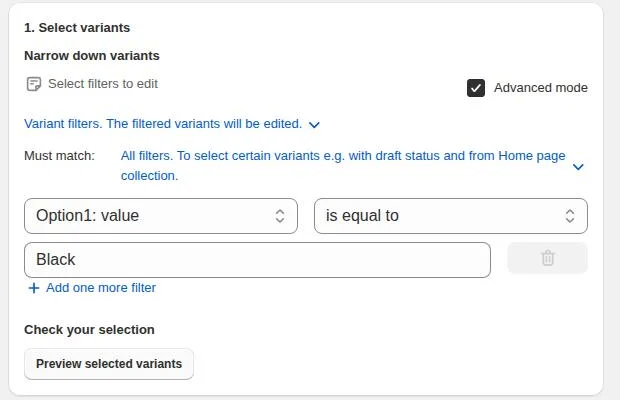
Bulk Product Edit by MITS, our app, selects variants with filters instead of ticks. This is the variant filter in the app as it runs in production:
- Pick the edit. Open Bulk Product Edit and, under Start a task on Home, pick the price edit (or compare-at, weight, inventory) in Popular edits.
- Switch to variant filters. Tick Advanced mode and change Product filters to Variant filters, so only the matching variants are edited.
- Filter by option value. Add Option1: value is equal to the size or color. Add Option2: value or Option3: value when that option sits in another position, and combine it with collection, product type or status.
- Preview the variants. Click Preview matching variants and check the list of matching variants with their price, compare-at price and quantity.
- Run or schedule. Set the change and run it now, or set a start and a revert time on a paid plan. The task stays in the history with a revert.
The filter operators for option values are is equal to, is not equal to, contains and does not contain. On our store, “Option1: value is equal to Black” picked four black variants and left the other colors alone. The variant edits in the same task: price, compare-at price, cost per item, weight (also converted to another unit), SKU, barcode, tax and tax code, inventory policy, track quantity, requires shipping, country of origin, HS code and unit price; stock per location has its own inventory edit, and the variant image sits with the image edits.
Try a variant filter on your own catalog and check the preview before anything changes.
You will be redirected to the Shopify app store.
Three fashion examples
Plus sizes cost more to make: +$2 on every 3XL tee
- Edit: Price.
- Filters: Collection is equal to Tees, Option1: value is equal to 3XL, must match all filters.
- Price: increase by amount, 2.
- Preview, then run. If some tees keep Size in Option2, run the same task once more with Option2.
End of season for one color, with an automatic end
- Edits: Price and Compare-at price.
- Filter: Option2: value is equal to Olive (or the position where Color sits).
- Compare-at price set to the current price; price decreased by 30% and rounded to .99.
- Start on Friday 00:00, revert on Monday 00:00. Scheduling is on paid plans; see scheduled price changes.
Shipping weight by size
Bigger sizes weigh more, and carrier-calculated rates read the variant weight. Filter Option1: value is equal to XL, set the weight, and repeat per size. Details on bulk editing weight.
Options and new variants
- It renames an option (Size → Talla) or one option value, moves an option to another position, sorts option values (A→Z, clothing sizes, your own order) and sorts variants.
- On Growth and Pro it adds new option values across products, and Shopify creates a variant for every combination. Each new variant copies price, compare-at, cost, weight, tax and inventory settings from the variant you name; SKU and barcode come from templates. Reverting removes the variants the task created.
- Deleting variants: on the product page or with a CSV import.
- Variant metafields are edited by type: set a value, add text, increase a number or money value by an amount or a percent.
- Variant filters work by position (Option1, Option2, Option3), so check where Size sits. To find the products that have a value under a named option, use the product filter Option value (option name + value).
- Scheduled start and revert times start on the Starter plan; the free plan’s limits are on the pricing page.
Frequently asked questions
Can you bulk edit variants in Shopify without an app?
Yes. Inside one product, select variants in the Variants section and click Bulk edit. Across products, tick them in the Products list and click Bulk edit, or export a CSV file, edit the variant rows and import it back. None of these applies a rule such as plus 2 dollars, runs on a schedule or has an undo after saving.
How do I change the price of one size across all products?
In the CSV export, keep only the rows whose Option1 Value, Option2 Value or Option3 Value is that size and change Variant Price. In Bulk Product Edit, switch to variant filters, add Option1: value is equal to the size, preview the variants and pick a price edit.
Why does a filter for XL also pick XXL?
Because XXL contains the letters XL. For sizes use is equal to, and check the preview before running the task.
Can I undo a bulk variant edit?
The Shopify bulk editor has no undo after Save, and a CSV import is undone only by re-importing the file you exported before. In Bulk Product Edit every task keeps a history, and reverting writes back the old values; a task that added option values removes the variants it created.
How many variants can a Shopify product have?
Up to 2,048 variants and up to three options, such as size, color and material, according to the Shopify Help Center.
Related guides
How to bulk edit prices on Shopify
Percent and amount changes, rounding and compare-at prices for a filtered set of products.
Read moreHow to filter products for a bulk edit
Product and variant filters, match all or any, and the preview step.
Read moreHow to bulk edit products in Shopify
The admin bulk editor, CSV import and an app compared, with steps and limits.
Read more