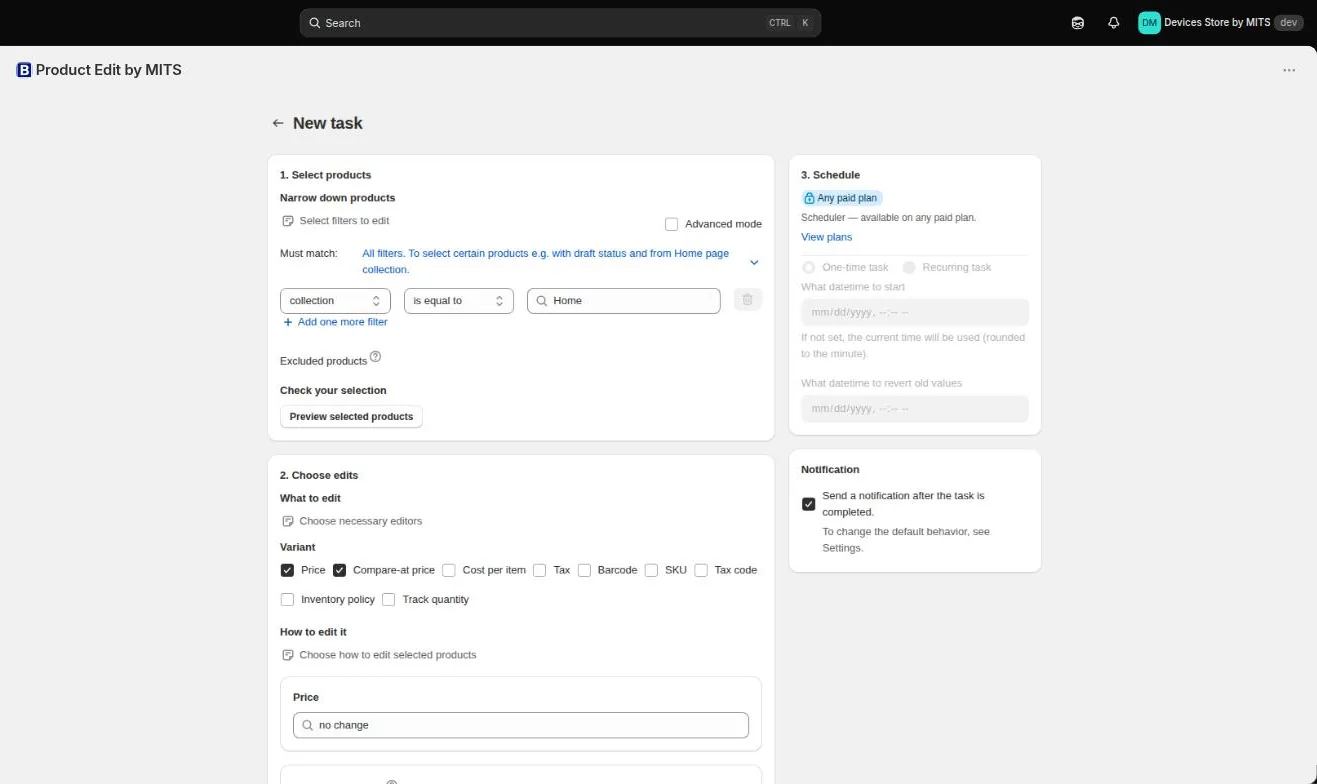
This walkthrough uses the New task screen, which is the same three-panel layout behind every other tutorial here: select products on the left, choose the edits below them, and set the timing on the right.
Step by step
- Open New task. From the app menu inside your Shopify admin, choose New task.
- Pick a filter. In “1. Select products”, choose a filter such as collection is equal to the collection you want, then add more conditions if you need them.
- Preview the selection. Use “Preview selected products” and read the list. If the count is not what you expected, fix the filter before going further.
- Tick the fields. In “2. Choose edits”, tick Price — and Compare-at price too if the storefront should show the old price struck through.
- Choose the operation. For compare-at price choose “set the same as the price”, and for price choose “adjust (by percentage)” with your discount, plus a rounding rule.
- Check the calculation example. The editor shows the old and the new value on a sample so you can confirm the arithmetic before anything is written.
- Run the task. Save the task. It runs in the background and, if notifications are on, emails you when it finishes.
Follow the steps in your own store — the free plan covers ten products per task.
You will be redirected to the Shopify app store.
What to check afterwards
Open a product in the admin and confirm both the price and the compare-at price.
Then open the same product on the storefront — themes differ in how they render a reduced price, and that is the thing customers actually see.
If the numbers look wrong
Percentage changes are applied to the current price, so running the same task twice compounds the discount. If that happened, revert the task rather than applying a correcting percentage.